

Video Guide
This guide will help you create a "video figure" (short video). These are often encouraged or even required with initial paper or demo submissions, or with camera-ready copies of accepted submissions.
Step 1: Script and draft
Check if the conference has a guideline for submitting your type of video. For example, CHI has a dedicated guide for video figures (e.g., the CHI 2026 Guide to Video Submissions).
Video spec checklist
- Maximum length: seconds
- Aspect ratio: 16:9 4:3
- Audio: Allowed Not allowed
- Encoding format: H.264 Other:
- File format: mp4 Other:
Create a detailed script (example) of your video. Sketch your screens like in a storyboard. Annotate it with timings of what is supposed to appear when. If your video will include a spoken voice-over, add the text to your script, test how long each sentence takes to say, and write down the duration next to each sentence. If you have voice over, try reading your script and breaking the text into small chunks in the script. Debug and iterate over the video script for 2–3 iterations within your team.
Remember that the text should sound like how you speak, not how you write!
Voice over script checklist
Short and simple sentences or clauses (imagine the text has to fit into subtitles)
No long-range references (e.g., using "that" to refer to an entity that was mentioned 10 seconds before)
Avoid defining new technical terms. Try to simplify them or use visual representations.
Then, spend 2–3 hours to create a draft of the video using concept images and text descriptions of each scene. This should include a draft voice over as well. You can put them together in Keynote or in a video editing program. The draft should be able to communicate the general concept of your video. You may adjust the durations of each scene at this step. Show the draft to people who don't know your project and ask them to explain back to you what they understood from the video. This will allow you to catch conceptual bugs in the video, like forgetting to explain something.
Step 2: Voiceover
For the voiceover recording, find someone who is a native or near-native speaker; you don't have to do it yourself. Jan will be happy to stand in as a speaker if you like. The voiceover should sound engaging, not boring and flat, but without sounding silly. It should not contain pronunciation mistakes. Give the voiceover speaker the script (in paper or on screen) and the draft of the video. Ensure that he understands the message of the video by asking him to explain the content back to you. The speaker may chunk the audio differently, according to his style. If the speaker has time, ask him to record the audio twice, once in small chunks, and once in groups (reading several chunks together naturally). Ask him to annotate chunk numbers and group numbers on the script and use these numbers on file names.
The video lab in room 2221 is the best place to record your voice over. It was designed for such recordings, with carpet and an acoustic ceiling for better acoustics and to avoid echo. If 2221 is occupied, try the Media Space. (Thorsten's tip: if you need to use another room than 2221, pull a blanket over your head and the microphone for a cleaner sound.)
Make some test recordings with the speaker to determine the best microphone setup. A good-quality external mike like our SHURE MV-7 on a boom right in front of the speaker's mouth, with the grey foam protection on it and with the "Dark" auto settings in the SHURE Motiv App, sounds pretty good. Turn up the input in Apple's Sound System Preferences so the signal level peaks most of the way to the right but without turning yellow or red.
Record the audio in QuickTime Player, then clip it in Audacity (free) or Fission. Next, add some bass in Audacity (6 dB sounds good), but without pushing the audio wave to touch the top or bottom range limits. Then normalize it in Audacity or Fission (this gives you maximum volume without distortion), and save it back to AIFF 16-bit signed.
Checking the voice over
Record in small chunks and in groups
Annotate the script with file names of the recorded audio
Audio files are labeled according to the script
One of the authors listens to all audio files to ensure their quality and correctness
- Text complete
- No pausing or struggling for words
- Clear, engaging speaker style, no pronunciation mistakes
- No background noise
Importing audio
- After importing the voice over, ensure that the sound mode is "dual mono".
- The audio quality can be greatly improved by background noise removal filters (which exist in Final Cut Pro X). If you want to manually remove background noise, use an equalizer or notch filter to reduce the frequencies around 50 Hz.
Step 3: Preparing visual materials
3.1 Live-action video
In each scene, record one second of video with a material that is pure white (e.g., a blank sheet of paper). This white paper will be the reference point for you to correct white balance afterwards. This is especially important when you have multiple live-action shots.
3.2 Animated diagrams
Use Keynote to create diagrams and animations. It is easier and faster to debug and make changes. Make sure that you set the slide size to match your video format.
Export the presentation as Quicktime movie with the following settings:
- Playback: Self-Playing
- Go to next slide after: 0 seconds
- Go to next build after: 0 seconds
- Format: ensure that size and encoding match your video
3.3 Screen capture
Capture the screen using the exact same resolution as your video. To enlarge the mouse cursor, http://www.telestream.net/screenflow/overview.htm is the only software we found that lets you replace the mouse cursor with any other image (e.g., a big mouse cursor: PNG PDF). Check that the anchor point is at the top-left of the image. We have a license; ask Christian Cherek if you would like to use the software.
3.4 Background music
Use music with a Creative Commons license and give proper credit in your video. See our internal page
Step 4: Video cutting
White balance correction for live video
Final Cut Pro X: Use RTColor balance plug-in and watch this YouTube tutorial
Exporting
Export using the "master file" settings in Final Cut Pro X (FCPX) and select Format: "Computer". (The master file export will be huge, but the turnaround is fast.) Ensure that the encoding is H.264 and the container format is MP4.
Step 5: Subtitling
For video figure, use soft-subtitle (the user can turn it on or off). For video preview, use hard-subtitle (which is burnt on the video frames as images).
If your video is short, manually adding subtitle in Final Cut Pro or iMovie will be fine. If it is long, you can use Aegisub to create a subtitle file. It has a UI that allows easy time synchronization. Then, you can add the subtitle file into the video in the compression step (e.g., with HandBrake)
Position any subtitles with some distance from the bottom of the screen because your video may get cropped when projected.
Step 6: Compressing
Usually videos produced by Final Cut or iMovie have a very large file size. Compressor or HandBrake can make them 3–10 times smaller.
HandBrake
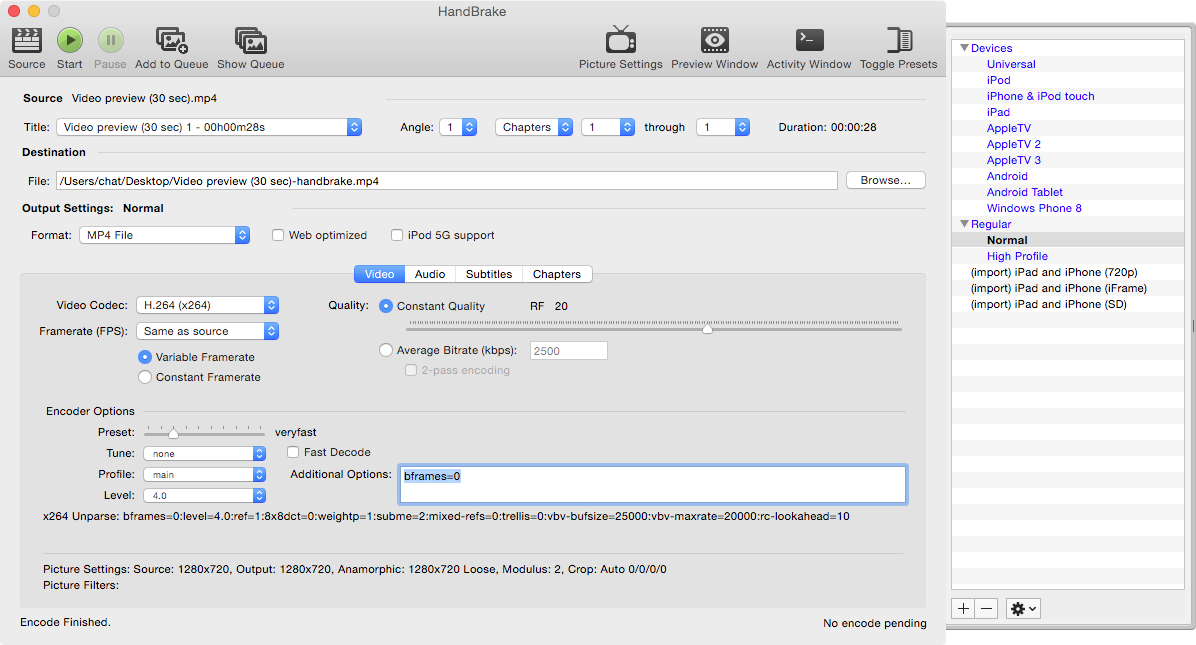
- Use HandBrake's "Normal" setting.
- Add "bframes=0" to prevent the first frame from being black. (screenshot)
Step 7: Sanity check
For both
The first three seconds show a still frame with:
- Paper title
- Author names
- RWTH Aachen University logo
- Project URL (use all lowercase for the URL, e.g., hci.rwth-aachen.de/statsplorer)
Make sure that the very first frame is not black or white. (Some compression settings add this frame to your video even if the original first frame starts with content.)
Stereo audio
The last three seconds show the same still frame as the beginning
For video figures
Add "soft" subtitles that can be turned on or off
For a CHI Video Preview (30 sec)
Complete the general checklist above
The video is understandable without sound or has "hard" subtitles burnt in.
Step 8: Upload to i10 YouTube channel
Add your video to the i10 YouTube account. (See account info page (assistants only)). Put it into the appropriate playlist (e.g., Research Projects). You can even schedule the video to go live on the date of the conference.
Resources
- Where to find i10 logos and fonts: Promo Videos, or click on our logo on our home page