

Hints for Mac OS X
Native Applications
All Applications
Access Menubar and Dock with Keyboard
CTRL-F2 to access the menu
CTRL-F3 to access the dock
Open/Save Dialogs
CMD-SHIFT-G to type in an absolute path
CMD-SHIFT-. to show/hide hidden files
Text Navigation/Selection
Add SHIFT to these shortcuts for selection.
LEFT/RIGHT resp. UP/DOWN to move by character resp. line (SHIFT+UP with cursor at the start of a line is especially useful for deleting a line including the line break)
ALT+LEFT/RIGHT resp. UP/DOWN to move by word resp. paragraph
CMD+LEFT/RIGHT resp. UP/DOWN to move to line resp. text beginning and end
(Xcode and some NSTextView subclasses only:)
CTRL+LEFT/RIGHT to move by camel-cased word fragment. Extremely useful for Obj-C coding!
Finder
- Cmd + N: create a new Finder window
- Cmd + Shift + N: create a new folder
- Cmd + Alt + N after selecting several items: create a new folder and put those items inside
- Enter after an item is selected: rename
- Cmd + Down arrow: Execute/open the selected item(s)
- Cmd + Shift + G: Show path input that you can type to go to that folder
- Cmd + D: Duplicate item
Info Inspector for Multiple Selected Files
- Cmd + I: multiple inspector windows
- Cmd + Ctrl + I: one summary inspector window
- Cmd + Alt + I: one summary inspector window that will update with the current file selection
Terminal
Open an application temporarily in another language:
open -a iPhoto --args -AppleLanguages "(German)"
Spotlight
Search options:
AND, OR, NOT
name: (to look for files with string in filename)
kind: (e.g., app, contact, folder, email, event, todo, image, movie, audio, music, pdf, pref, bookmark, font)
date:, created:, modified: (e.g., <=1/1/08, today)
Reveal in finder instead of opening the file: CMD+RETURN
Spotlight can also be used as a calculator that understands many functions: sqrt, pow, ceil, floor, rint, exp, log, sin, cos, tan, asin, acos, atan.
Dictionary
Dict.cc plugin
Philipp Brauner of LuFG i9 created a plugin that offers offline access to the whole database of the dict.cc English-German dictionary. See http://www.dict.cc/?s=about%3Awordlist for download.
Overlay keyboard shortcut
If you press CMD-CTRL-D in any native OS X application (e.g. Safari or Pages) an overlay appears which will show the entry of the Dictionary App for the current word under your mouse cursor:

Be aware, that the overlay will only display the results for the first reference source of the Dictionary app, which has an entry for the word under your mouse cursor. So if you want to use the dict.cc plugin with the overlay, you have to open the Dictionary App, go to Preferences and drag the dict.cc entry to the top of the list.
Address Book
Use RWTH address book and i10 user data in Address Book and Apple Mail
To use the RWTH address book from the Address Book app and from Apple Mail, follow the instructions posted by the RZ:
http://www.rz.rwth-aachen.de/aw/cms/rz/Themen/unsere_dienste/kommunikation/Infodienste/webmail/abook/~ovp/anleitung/?lang=de#macosx
To use our LDAP server (includes mobile phone numbers of all people working at the chair), follow the same steps and enter this information:
Server: fuller.informatik.rwth-aachen.de
Search Base: cn=users,dc=fuller,dc=informatik,dc=rwth-aachen,dc=de
Scope: Subtree
The same settings work on the iPhone/iPad as well! Just add a new "Mail/Contacts/Calendar" account.
iPhoto
Direct access to iPhoto Library through Finder
If you often access the photos of your iPhoto Library through the Finder, but are bothered to always have to click on 'Show Package Contents' on the context menu, you may consider to remove the extended attribute which is responsible for this.
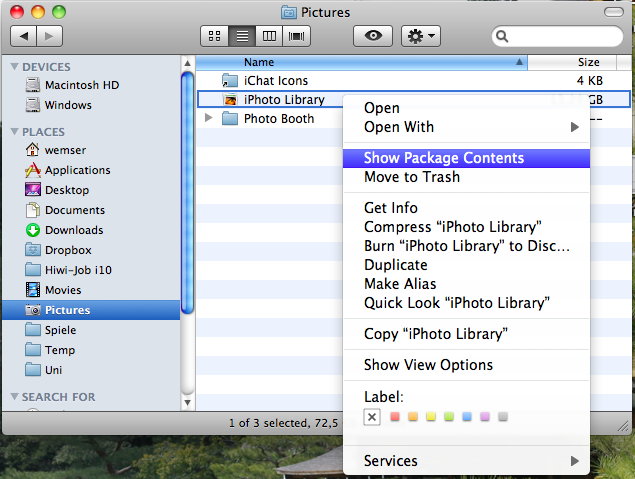
To do so, open the Terminal app and enter
xattr -d com.apple.FinderInfo ~/Pictures/iPhoto\ Library/
As a result, your iPhoto Library will look like a normal folder, so that you can access it via 'Open' from the context menu or CMD-Down (which both previously would have opened the iPhoto application):
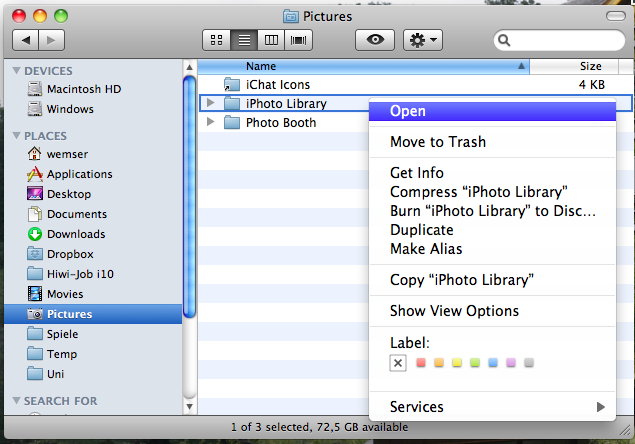
To restore the default setting, type in one line:
xattr -wx com.apple.FinderInfo '00 00 00 00 00 00 00 00 20 00 00 00 00 00 00 00


        00 00 00 00 00 00 00 00 00 00 00 00 00 00 00 00' ~/Pictures/iPhoto\ Library/
System Preferences - Keyboard Shortcuts
Customize keyboard shortcuts for any application
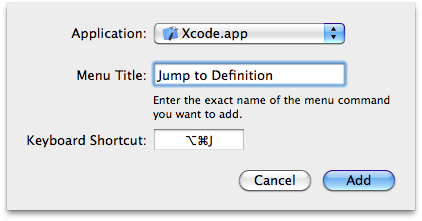
A very nice feature of OS X is, that you may create or modify a keyboard shortcut for any menu item of any program. To do so, open System Preferences, navigate to 'Keyboard' and select the 'Keyboard shortcuts' tab. Select 'Application shortcuts' on the left and click on the (+) button to create a new keyboard shortcut. In the appearing dialog, select the application for which you intend to create a keyboard shortcut and enter the exact name of the menu item:
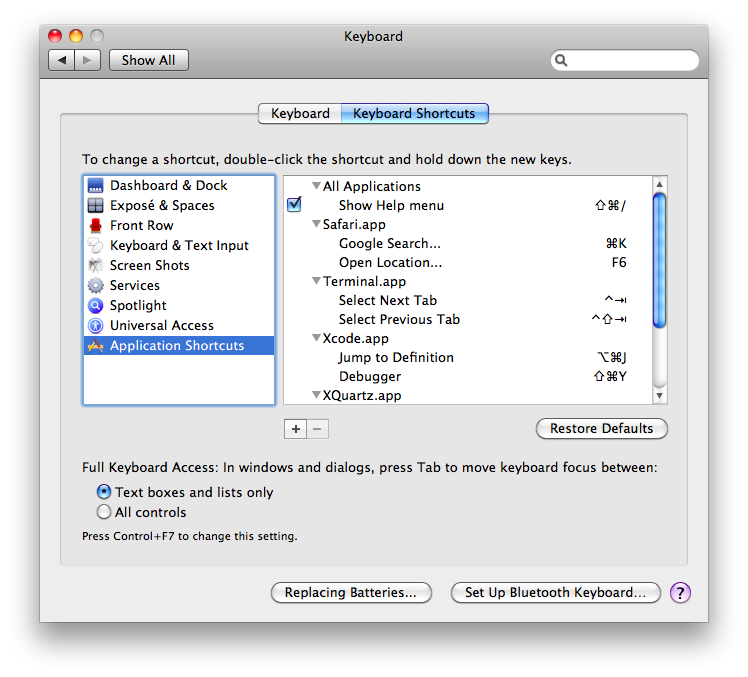
The following picture shows the result and some other examples for keyboard shortcuts I find very useful (e.g. accessing Safari's URL textfield or the Google Search like in Mozilla Firefox):
Cycle through windows of one application
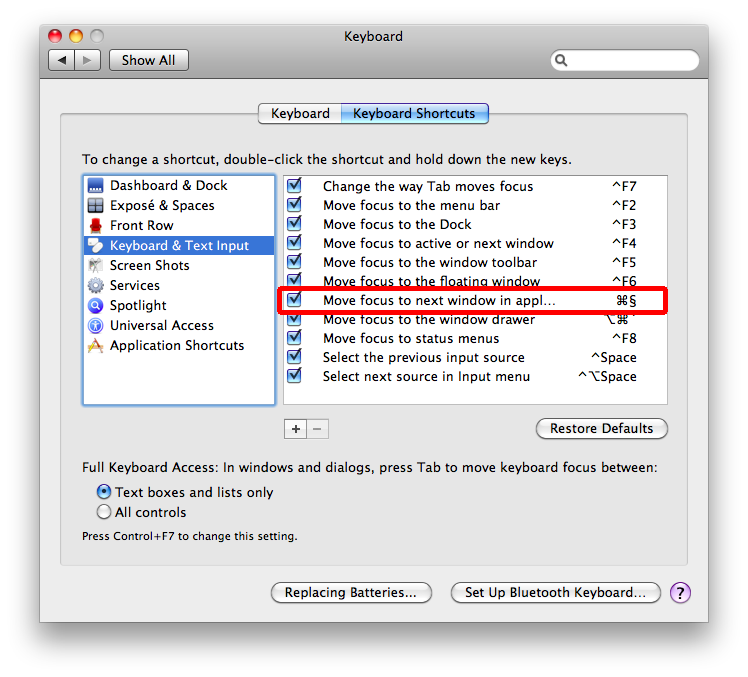
As probably everybody knows, you can cycle through your open applications by pressing CMD-(SHIFT)-TAB. On an english keyboard you can do the same with the different windows of one application, if you press CMD and the key above TAB and left to 1. However, the default shortcut of Mac OS X won't work if you've got a german keyboard, a german keyboard layout or the USGermanKeyboard. So if you want this behavior on the key above the TAB-key, you've got to change the key for 'Move focus to next window in application':
Other useful Software
GrandPerspective
Quick visual overview of what's taking up space on your disk. Free (Jan, 2/2013)
Mail Act-On - indispensable keyboard shortcuts for Apple Mail sorting
Define simple rules, then press, say, "`a" to sort an email from your inbox into a folder called "Ablage". Saves hours of mousing time if set up for your most frequent folders, and doesn't conflict with standard kbd shortcuts. I couldn't live without it. (Jan)
http://www.indev.ca/MailActOn.html
TextExpander - system-wide or app-specific keyboard macros
A pretty useful tool if you write a lot with repetitive phrases. Works well for me, e.g., I type "b@c" to insert my email address anywhere, or "vgjb" to insert
- Jan Borchers
in my email. Some OS X apps support such macros defined in System Prefs / Text and Language, but not Apple Mail, for example. And signatures are less flexible and take longer to select (GOMS). (Jan)
http://smilesoftware.com/TextExpander/
Cinch - neat tool for fast window resizing
Cinch gives you simple, mouse-driven window management by defining the left, right, and top edges of your screen as 'hot zones'. Drag a window until the mouse cursor enters one of these zones then drop the window to have it cinch into place. Cinching to the left or right edges of the screen will resize the window to fill exactly half the screen, allowing you to easily compare two windows side-by-side (splitscreen). Cinching to the top edge of the screen will resize the window to fill the entire screen (fullscreen). Dragging a window away from its cinched position will restore the window to its original size.
You can use Cinch for free if you can live with a 3 second dialog box on each start. Otherwise buy a license for 7$.
Gimp - Halfway sane mouse click behaviour
Gimp is a very capable and free cross-platform graphics software. The packages of Lisanet are an easy way to install it under Mac OS X. However, the default click behaviour of X11 is a pain in the a** for Gimp. If you select a tool from the toolbox and want to employ that tool on your picture, the first mouse click will be swallowed, because it's used to make the picture window active. This will drive you nuts immediately!
To get rid of this behavior, start X11 and open the preferences dialog. Just activate 'Click-through Inactive Windows' and deactivate 'Focus Follows Mouse', as shown below:
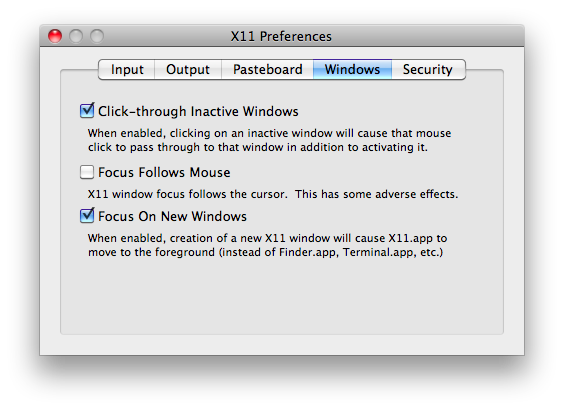
If these options don't exist on your system, than it's quite likely that your X11 Window Server is out of date. You may find an update on Apple's website, but you can also use the X11 packages from the XQuartz project, which are more up to date than the ones Apple provide. After installation and a new log-in, XQuartz is used as X-Server. Configure as described above, or if you don't like searching preference dialogs, simply open a Terminal and type in the following two lines, which will have the same effect:
defaults write org.macosforge.xquartz.X11 wm_click_through -bool true


defaults write org.macosforge.xquartz.X11 wm_ffm -bool false
Credits for this hint go out to Arne Schmitz of i8!
Secrets - Hidden preferences via System Preferences
Many Mac applications offer user defaults settings, that can not be configured via the graphical user interface. To edit them, the defaults command on the Terminal has to be used. These settings often exist for testing or debugging purposes, but some of them are actually quite useful. Secrets is a website that collects these hidden settings in applications. They also offer a preference pane, that allows setting the preferences easily via a graphical interface. The preference pane synchronizes with the website to make sure you can always select from the latest set of available settings.
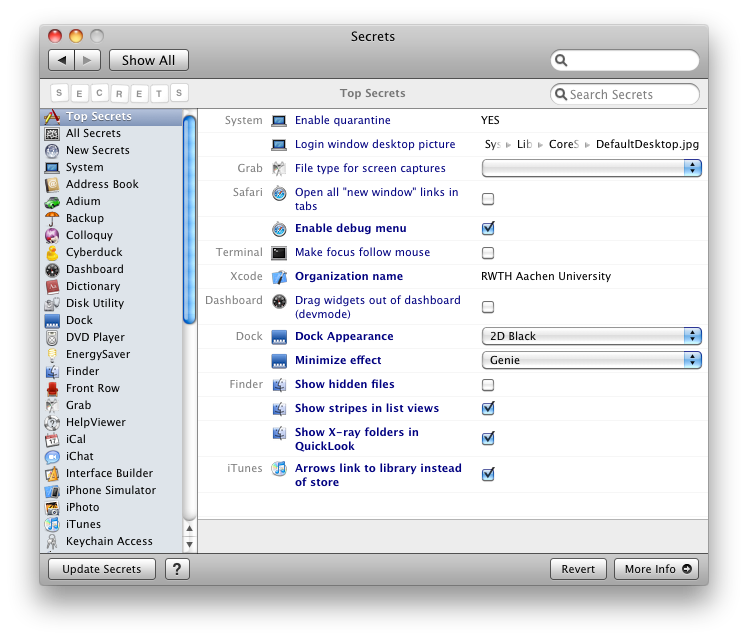
Secrets no longer seem to exist. ThinkerTool might be a (not fully equivalent) alternative.